Ways to use word clouds
How to print a word cloud in black and white
Turn a colorful word cloud into a clear black-and-white print, then check one copy before printing the rest.
1. Save your current design
Download a project JSON before changing the colors. It keeps your words, weights and layout together, so you can return to the original. A color change doesn't require a new arrangement. Keep the finished layout while you compare a colorful version with a black-and-white one.
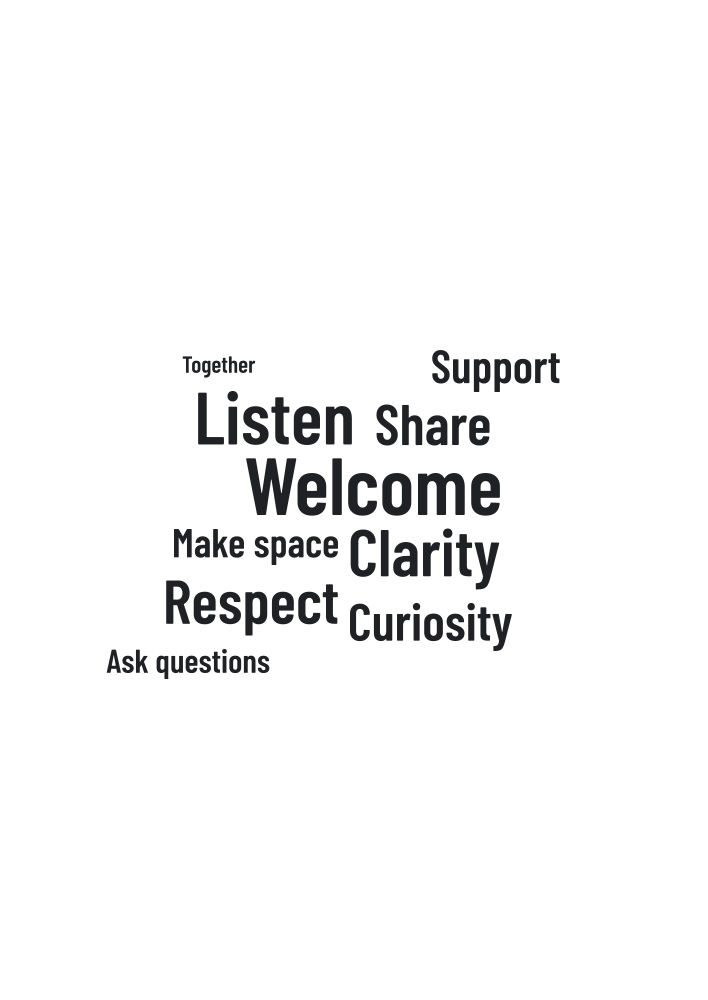
Try the ten-word welcome poster if you'd like a starting point. It contains Welcome, Listen, Clarity, Respect, Share, Curiosity, Support, Make space, Ask questions and Together. These are suggested words for a poster, with weights chosen for the design. The example uses a circle, seed 4096 and a 210 × 297 mm portrait canvas.
2. Choose dark words on white
Use one dark color for the words and select a white artwork background. This gives you a clear result to check before the printer converts anything to grayscale. A transparent image can also work on a white document page. Open it in that document to see the background it will actually print on.
Changing the app to dark mode only changes the editor controls. Choose the artwork colors and background separately, then check them in the download. For a simple office print, a white background also avoids filling most of the page with dark ink. The amount of ink used will depend on your printer settings.
3. Check the smallest words
Look at the artwork at its intended print size. Start with the smallest words: if they are difficult to read, try a narrower range of weights, a different sizing option or fewer words. Raising the minimum readable size may leave some words unplaced, so check the report after generating again.
Leave some breathing room around the words. A gap in the circle doesn't need tiny filler, especially if the image will be read from a distance. When all ten terms matter, include a normal text list alongside the cloud. It gives readers a straightforward way to find every word.
4. Download a suitable file
Choose PDF for a page with a set physical size, or PNG if you're putting the artwork into another document. SVG stays sharp when resized in software that supports it. Whichever format you choose, open the actual download and check the result in the app you'll use to print it.
PNG exports default to no more than 4 megapixels. Larger images depend on the memory available in your browser. If the requested image cannot be created, choose a lower resolution or use SVG or PDF. Then check the paper size, scale and printable area; a successful download doesn't set those printer options for you.
5. Print one test copy
- Open the downloaded file in the app you plan to print from.
- Check the paper size, orientation, scale and margins.
- Print one copy at the final size.
- Read the smallest words and check that the letters stay clear.
- Compare it with your word list and placement report.
- Adjust the design or printer settings if needed, then check another copy.
The example hasn't been tested on a physical office printer. Use your first copy to check the paper, ink and settings you're working with. If you'll print the design regularly, keep a note of the settings with the project so the next batch starts from the same version.