Ways to use word clouds
Make square and portrait versions of a word cloud
Use the same words for a square image and a portrait print, then check how the new proportions affect the layout.
1. Keep a copy of the starting project
You can use the same words for a square image and a portrait print. Save a project JSON first so you have the original list, weights and settings to return to. Then make a separate project for each version. That makes it easier to compare the designs or update them later.
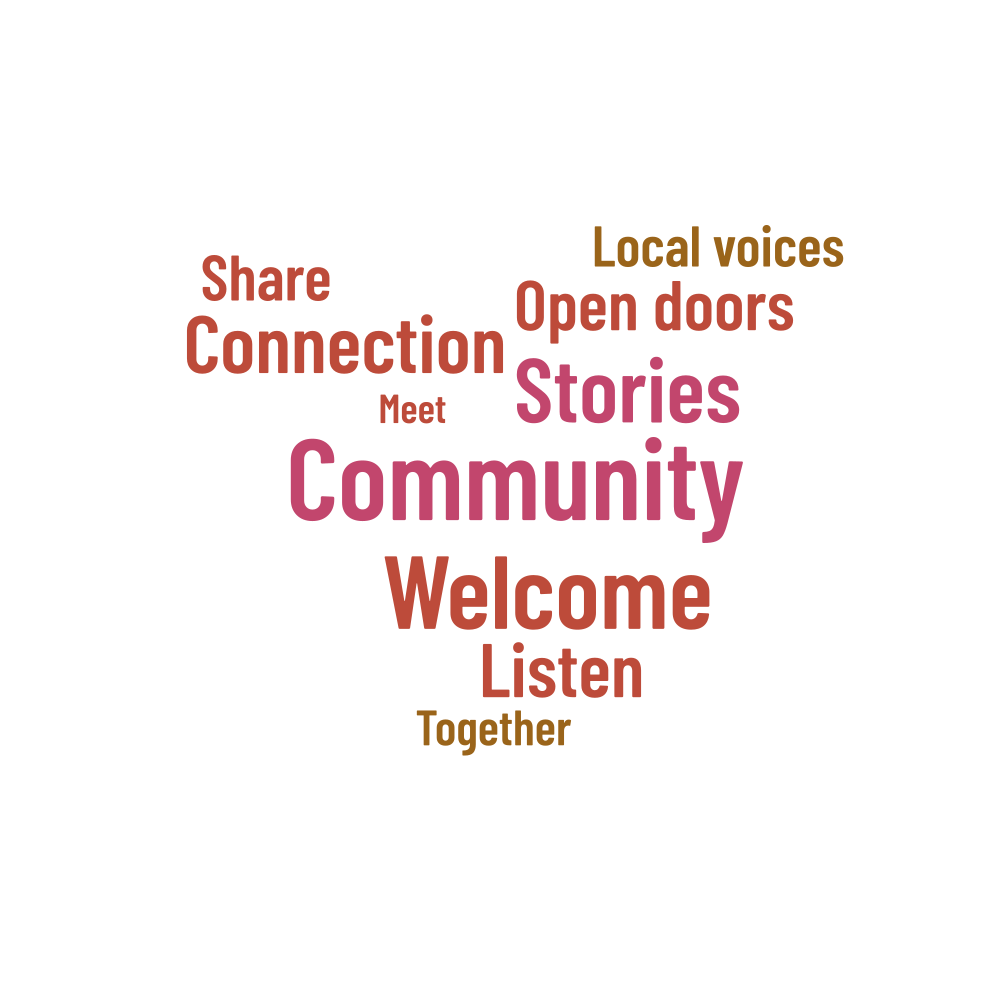
The examples use ten community-themed words and phrases: Community, Welcome, Stories, Connection, Listen, Open doors, Share, Local voices, Together and Meet. These are suggested words for the design, rather than collected comments. Both versions use a heart shape, seed 65537, the same palette and the same word weights.
2. Make the square version
Start with the 200 × 200 mm example. Generate the layout and check the report, paying attention to the longer phrases. Save this project before changing the dimensions. You can keep an image for a quick visual comparison, but the JSON file is the copy you'll need to edit the design later.
3. Generate a separate portrait layout
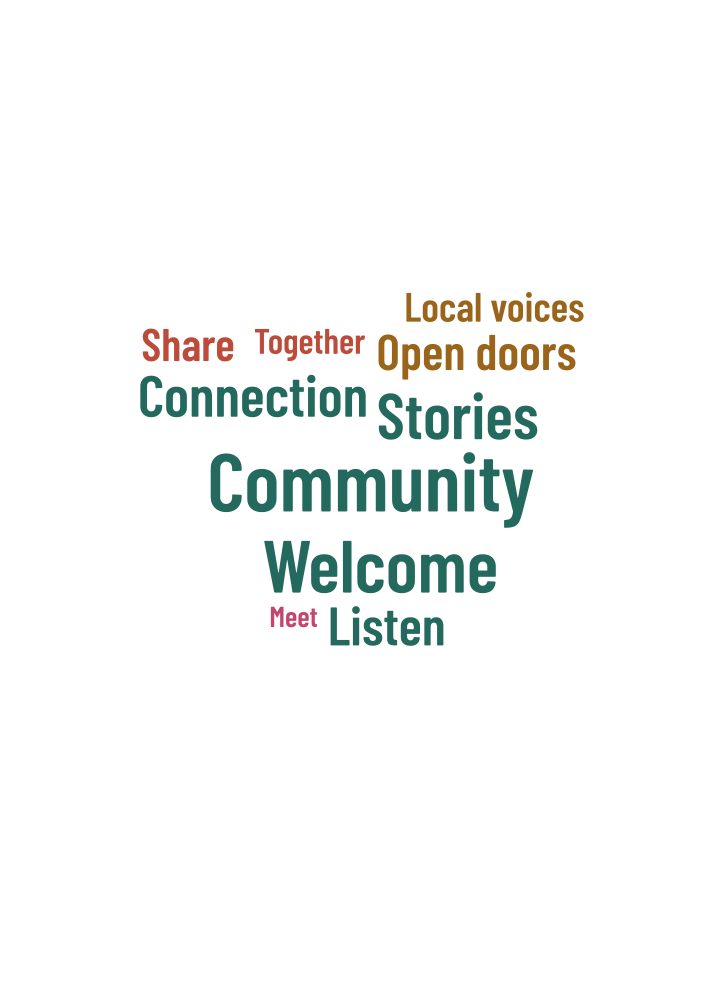
For the portrait version, change the canvas to 200 × 280 mm and generate again with the same list, weights, seed and palette. This lets the words use the new space. Stretching the square image to fill a taller area would distort the letters, so keep the width and height in proportion when resizing a finished file.
The seed gives the generator the same starting sequence, but it doesn't freeze positions when other settings change. A taller shape can give one phrase more room while leaving another unplaced. Treat the portrait layout as a separate design and check it on its own, even if the seed is unchanged.
| Version | Artwork size | Seed | Placed | Unplaced |
|---|---|---|---|---|
| Square | 200 × 200 mm | 65537 | 10 | 0 |
| Portrait | 200 × 280 mm | 65537 | 10 | 0 |
Both saved examples place all ten rows using Barlow Condensed SemiBold and engine wordshapelab-grid-1.0.0. The square layout is 1,000 × 1,000 px with maximum and minimum font sizes of 115 and 14 px. The portrait is 714 × 1,000 px, with sizes of 82 and 10 px to suit its narrower width. Both use horizontal words, 6 px padding and a 24 px shape margin.
4. Compare the words as well as the shapes
Check the row names in both reports, as well as the totals. Two designs can place the same number of words while leaving out different ones. If Open doors must appear, find it in each final image. Include a full text list beside the artwork whenever every word needs to be available.
If one version needs a different maximum font size or spacing, save those changes in its own project. Try one adjustment at a time so you can see what helped. You may prefer a more open portrait design and a denser square; they don't need identical spacing to work well together.
5. Name and save both versions
community-square
  artwork: 200 × 200 mm
  shape: heart
  seed: 65537
  source: original ten-row example

community-portrait
  artwork: 200 × 280 mm
  shape: heart
  seed: 65537
  source: the same reviewed rows
Keep each project JSON with its matching artwork download and use filenames that make the dimensions clear. Choose the square file for a square space and the portrait for a taller one. To make a third size, return to the project instead of stretching or repeatedly compressing an image you've already downloaded.
For an exact layout match, keep the same words, font, engine version, shape, settings and seed. A PNG's compressed file bytes can differ between browsers even when the word positions match. Compare the visible wording and geometry when checking that two exports show the same design.