Ways to use word clouds
Prepare a word cloud for a print shop
Choose the right export, write down the finished size, and check a proof before ordering your prints.
1. Ask the print shop what it needs
Before exporting, ask the print shop for its preferred file format, finished size, safe area and bleed requirements. These can vary with the product and printing process. Confirming them early gives you time to adjust the artwork, rather than discovering a size or format problem after placing an order.
WordShapeLab downloads SVG, PNG and PDF in RGB. It doesn't prepare CMYK separations, bleed or a color-managed press proof. If the shop needs those, ask how it handles conversion and proofing or prepare the file in suitable design software. A screen preview alone can't show exactly how the printed colors will look.
2. Check the design you plan to send
Try the studio example to work through the steps. It contains Create, Explore, Practice, Experiment, Notice, Make time, Try again, Curiosity, Discover and Begin. The design uses a circle, seed 98765 and an A4 portrait canvas of 210 × 297 mm. Replace the suggested wording with your own before preparing the final file.
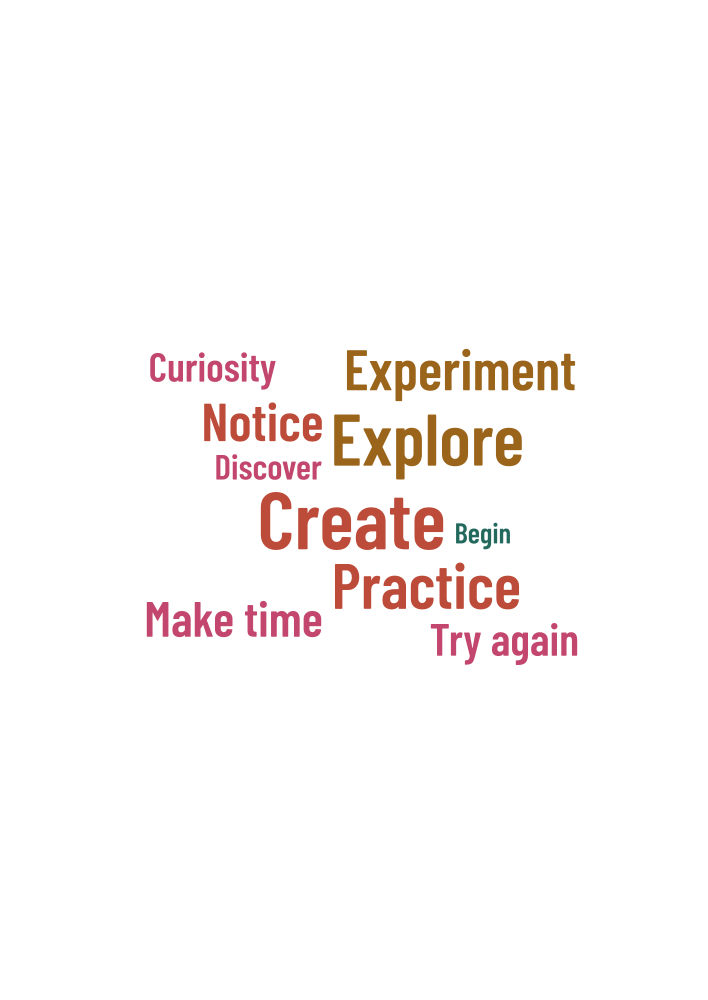
Read the placement report and compare the finished design with your word list. Check any names or phrases that must appear, especially after changing the size, font or shape. If you deliberately leave something out, note that choice so it doesn't look like an error when someone else checks the proof.
3. Include the size and printing instructions
Example proof note
Project: Original studio word-art example
Requested finished size: 210 × 297 mm, portrait
Artwork background: white
Layout seed: 98765
Text source: reviewed ten-row generic list
Scaling: preserve the artwork proportions
Trim / safe area / bleed: confirm with supplier
Color matching: no color-managed proof supplied
Final acceptance: inspect the supplied file and request a proof if needed
Use the sample note above as a starting point and replace the details with those of your actual file. If the finished print will be smaller, check that the words remain readable at that size. The shop usually needs the artwork and instructions; send the editable JSON only if you've agreed to share the full project.
4. Open and inspect the export
Check the download's dimensions, orientation and background in a suitable viewer. SVG stores letters as outlines, so the recipient doesn't need the same font installed. You still need to check spelling, accents and punctuation in the exported artwork. Outlines preserve the appearance you exported, including any mistakes you missed.
For PNG, give the shop the pixel dimensions as well as the intended print size. For PDF, check the page size and the space around the design. The shape's internal margin is separate from page margins, trim and bleed. Keep the space the printer needs rather than cropping closely to the outer words.
5. Check a proof before the final run
- Confirm that the shop has opened the final version of the file.
- Check spelling, accents and all essential phrases.
- Compare the proof with the requested size, orientation and background.
- Read the smallest words at the finished size.
- Confirm the crop, safe area and any finishing requirements.
- Keep a copy of your proof approval with the order details.
This sample hasn't been physically printed or approved by a print supplier. Use the shop's proof process to check your own order, particularly where color or small lettering matters. Keep the final export, project JSON and print instructions together so a later revision starts from the right version.