Ways to use word clouds
How to add a word cloud to a presentation
Build a slide around six sample themes, with enough space to explain where the words came from and what they mean.
1. Explain where the words came from
A word cloud can introduce the themes of a presentation, but word size can look like a finding even when you've chosen it for visual balance. Decide whether your list contains counted responses, themes you've identified or simply words for discussion. A short caption helps the audience understand what they're looking at.
This example uses six suggested meeting themes: Clear priorities, Shared notes, Time to focus, Ask early, Useful feedback and Room to learn. The weights are chosen for the design. Since the list doesn't come from a real meeting or survey, describe it as an illustration rather than team feedback.
2. Keep each theme in one phrase
Enter one phrase per line or use the CSV word cloud generator to supply weights. Time to focus should stay together rather than becoming three separate words. Start with horizontal phrases in a speech bubble. If a phrase doesn't fit, try changing the shape or sizes before changing its wording.
| Phrase | Chosen weight |
|---|---|
| Clear priorities | 9 |
| Shared notes | 7 |
| Time to focus | 6 |
| Ask early | 5 |
| Useful feedback | 4 |
| Room to learn | 3 |
3. Give the image and caption their own space
For a 16:9 slide, try the example's 240 × 135 mm canvas. It uses seed 8192; the saved project contains the rest of the settings. Leave space around the cloud for a title, the phrase list and a caption. The layout below is one way to divide the slide without crowding the image.
| Slide area | Example content | Why include it? |
|---|---|---|
| Top | Ways to make room for better work | A descriptive title, not a research claim. |
| Left two-thirds | The speech-bubble artwork | A visual opening for the discussion. |
| Right third | Clear priorities; Shared notes; Time to focus; Ask early; Useful feedback; Room to learn | A plain-text alternative with the same wording. |
| Bottom | Illustrative themes. Weights chosen for composition; no survey data. | A caption that travels with the slide. |
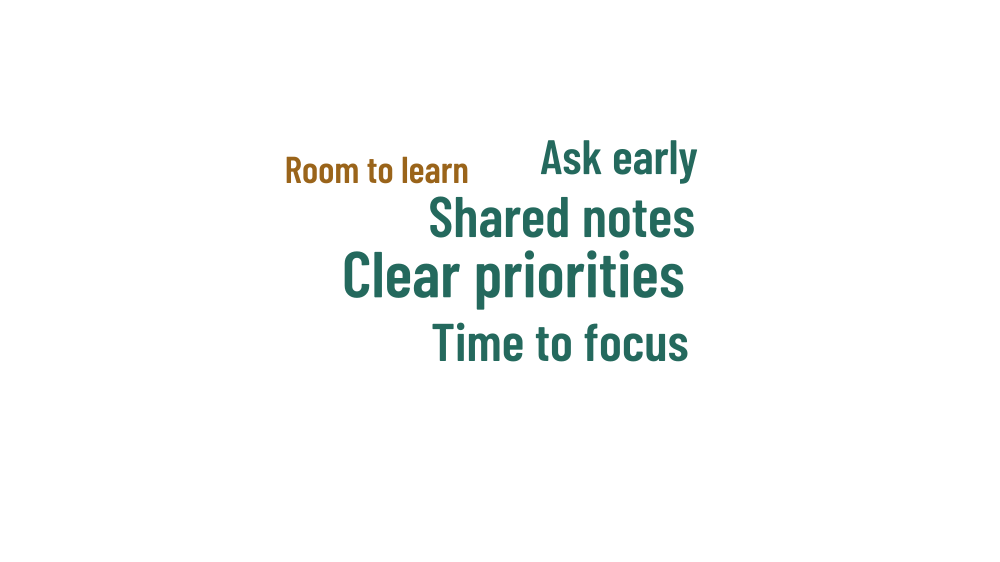
Write the caption as normal slide text outside the image so it is easy to read and update. A longer phrase can cover more space than a short one with a similar weight. If the audience needs to compare exact numbers, add a table or a chart with labeled values.
4. Check the image in your presentation app
PNG is a straightforward choice for adding the cloud as an image. You can also try SVG if your presentation app supports it. Open the slide and check for clipping or changes in appearance. Resize the image evenly so the letters keep their proportions, rather than stretching the width or height separately.
If you export with a transparent background, check the words against the slide color. Dark lettering can disappear on a dark slide even if it looked clear on the editor's white artboard. Choose a lighter artwork palette or place the cloud on a light panel. The app theme doesn't change the export colors.
5. Keep a text version available
Include the phrase list on the slide, on a nearby slide or in an accessible handout. Add a short text alternative that explains the image in context. The SVG uses outlines to preserve the appearance of the letters, so essential wording should also be available as ordinary text.
Save the project and download alongside the presentation. If you change the themes later, update the list and caption at the same time. This example hasn't been tested with your presentation app or projector. Before presenting, check the finished slide on the setup you'll use, including contrast and readability from the back of the room.