Put your discussion themes in a speech bubble
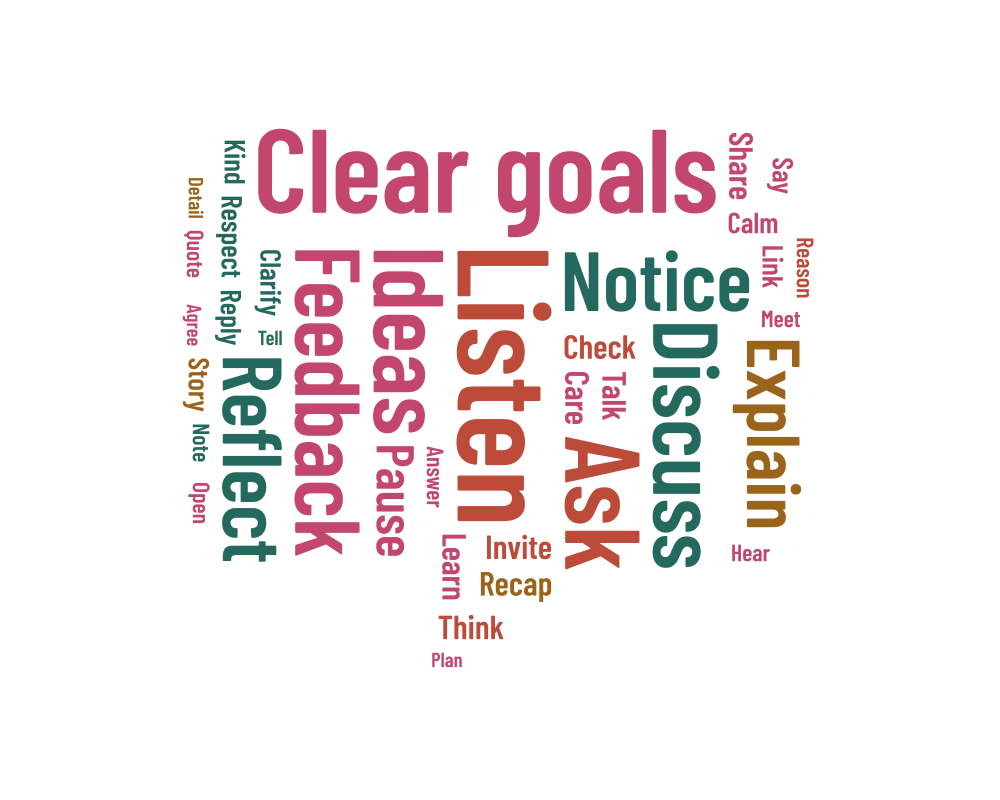
A speech bubble is a good match for a few conversation starters, a group message or themes from a discussion. The example includes Listen, Clear goals, Ask and Take turns. These are sample words for you to edit; use your own list when you want to reflect a particular conversation.
Keep the whole thought
If your list comes from feedback, keep qualifications such as Not enough practice intact. Reducing that phrase to Practice would change the message. Use one phrase per line, choose weights that match your counts or intended emphasis, and add a short caption explaining how the words were selected.
The sample uses smaller words such as Talk, Say, Hear and Voice, weighted from 0.3 to 0.8. They add variety around the larger expressions. Try the horizontal/vertical mix, or switch to horizontal-only words for a slide that needs to be read quickly from the back of a room.
Use the wide part of the bubble
The main body has useful space for short phrases, while the tail may remain empty. A long phrase needs one uninterrupted area large enough to hold it. If it stays unplaced, reduce the shared maximum font size or choose a wider canvas, then generate again to check the new result.
- Begin with the 200 × 160 mm landscape example.
- Try horizontal-only rotation if a phrase is difficult to read.
- Use phrase input when each line represents a complete discussion theme.
Add it to a slide or handout
Check the artwork against the background of your actual slide. A transparent PNG can be convenient for this; SVG stays sharp when resized, but should be checked in the presentation app you use. Keep a readable list in the slide notes or nearby text when every theme needs to be available.
Save a project JSON before trying a new arrangement. It keeps the phrases, weights and exact positions, so another color or a spelling correction is easy to make later. Keep a separate copy of the original responses when the cloud summarizes feedback.