How word cloud weights affect word size
A count tells you how often a word appears. A weight tells WordShapeLab how large to make it. Here's how the two work together.
Start with counts, then choose your emphasis
When you paste ordinary text, the editor counts how often each word appears after applying your text settings. That count becomes the row's starting weight. You can change the weight to adjust the design, but the edited number no longer describes the original frequency. Keep the original counts if you plan to discuss them alongside the artwork.
Try Rose rose ROSE, blue! blue with lowercase turned on and common-word removal off. You get rose at count 3 and blue at count 2. Leave lowercase off and the three versions of Rose remain separate. When sharing a cloud made from data, explain any choices like these that affect the result.
Compare square-root and linear sizing
Both options use one scale across the whole list. Square root makes font size proportional to the square root of the weight; linear makes it proportional to the weight itself. Your maximum font size sets the top of that scale. The generator keeps that relationship rather than resizing individual words to fill gaps.
| Word | Weight | Square-root size, maximum 60 px | Linear size, maximum 60 px |
|---|---|---|---|
| one | 1 | 20 px | about 6.67 px |
| four | 4 | 40 px | about 26.67 px |
| nine | 9 | 60 px | 60 px |
In this example, the square-root scale is 20, and the linear scale is 60 divided by 9. If your minimum readable size is 12 px, one is too small to place in the linear version. The report flags that row. You can choose another size range, adjust a design weight or use the other mapping, depending on what you want the numbers to show.
Use a table for exact comparisons
Words of different lengths occupy different amounts of space, even at the same font size. Wide letters, narrow letters and spaces also change the visible area. Doubling the font size does not create a reliable picture of twice the count. A word cloud gives an overall impression; the table is where readers can compare the exact numbers.
For a decorative print, a caption such as Weights chosen for visual emphasis is enough to explain your approach. For counted text or survey themes, say what you counted and whether one response could contribute several words or themes. Add a table or chart if the audience needs to compare precise values.
Check the result against your list
- Confirm the lowercase, common-word and duplicate settings you used.
- Keep a copy of the counts before editing any weights.
- Choose a sizing option and minimum size that suit the final print.
- Read the placed, unplaced and omitted rows together.
- Include the word list and a short explanation when the cloud summarizes source material.
Save a new project version if you change the source list, weights or sizing option. A seed helps you repeat a layout when the other settings stay the same; it does not tell readers how the words were chosen. Update the caption too, so it still describes the version you are sharing.
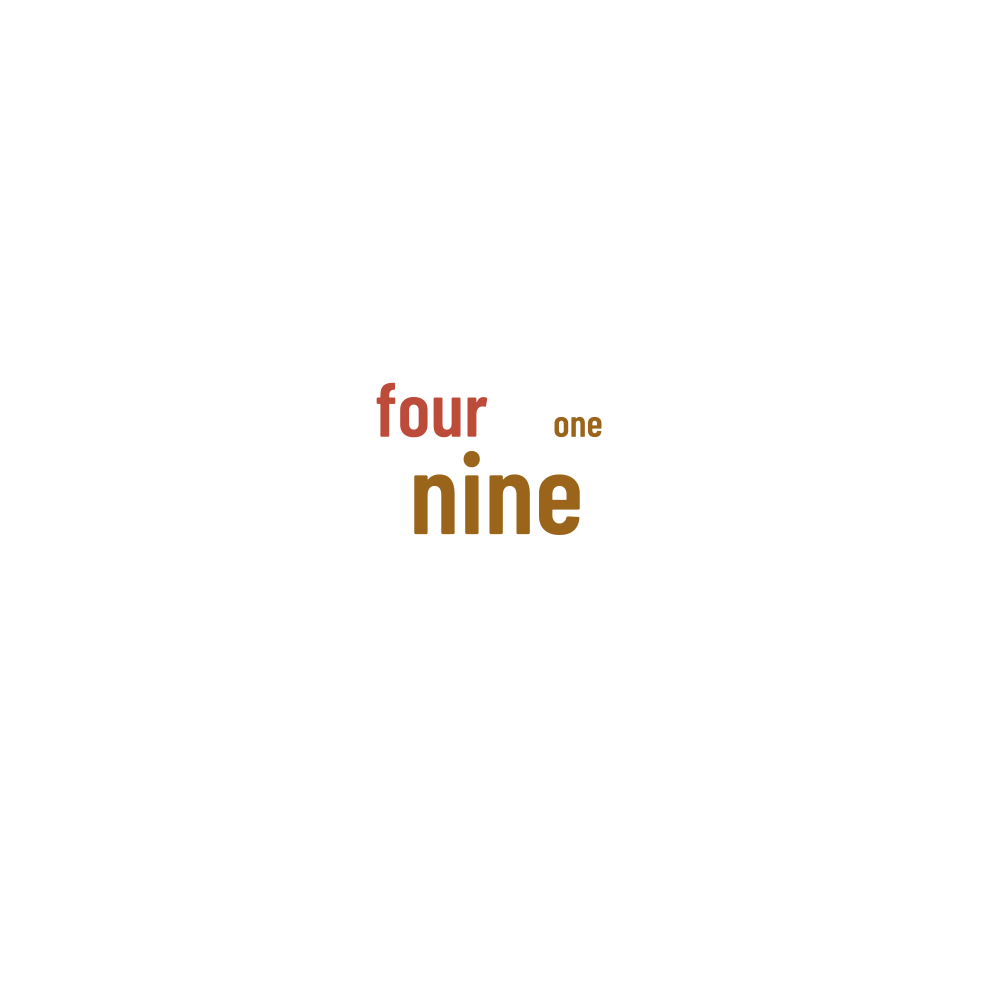
Words in this example
one · four · nine