Ways to use word clouds
How to make a classroom vocabulary word cloud
Create a water-cycle display with twelve terms, a clear text list and room for your own lesson notes.
1. Choose the words your lesson needs
A vocabulary word cloud can give a classroom display a clear focus. Start with the words students need for the lesson, then decide how you'll use the image. If they need to read every term, put a plain-text list beside it so the shape and word sizes don't get in the way.
This example uses twelve water-cycle terms. Check them against your lesson and adapt the spelling or explanations for your class. The weights below give some words more space in the design; they don't measure how difficult or important a term is. You can set equal weights if that suits the activity better.
| Term | Weight | What to check |
|---|---|---|
| water cycle | 9 | Keep as one phrase. |
| evaporation | 7 | Check the full spelling at the final size. |
| condensation | 7 | Retain as a complete term. |
| precipitation | 7 | Longer word; inspect its placement. |
| collection | 6 | Check that its meaning fits the lesson. |
| water vapor | 5 | Keep as one phrase. |
| cloud / rain | 4 each | Two separate rows. |
| sun / river / lake / ocean | 3 each | Four separate rows. |
2. Use the same list for the cloud and handout
Enter one phrase per line or import a CSV with word and weight columns. This keeps water cycle and water vapor together. Use the twelve terms below as the source for both the image and its companion list, so a later spelling change doesn't leave you with two different versions.
water cycle
evaporation
condensation
precipitation
collection
water vapor
cloud
rain
sun
river
lake
ocean
To give every term equal emphasis, change all the weights to the same positive number before generating. If you want a shorter display, choose which terms to leave out yourself. Keep the complete vocabulary list for the handout, including any words that don't fit in the shape.
3. Try a book or apple shape
Open the book example to start with seed 2048 and a 210 × 297 mm portrait canvas. Generate the layout and check which terms fit. Save that version, then try the apple with the same list. Changing the shape can change the result, so read the new report as well as comparing the pictures.
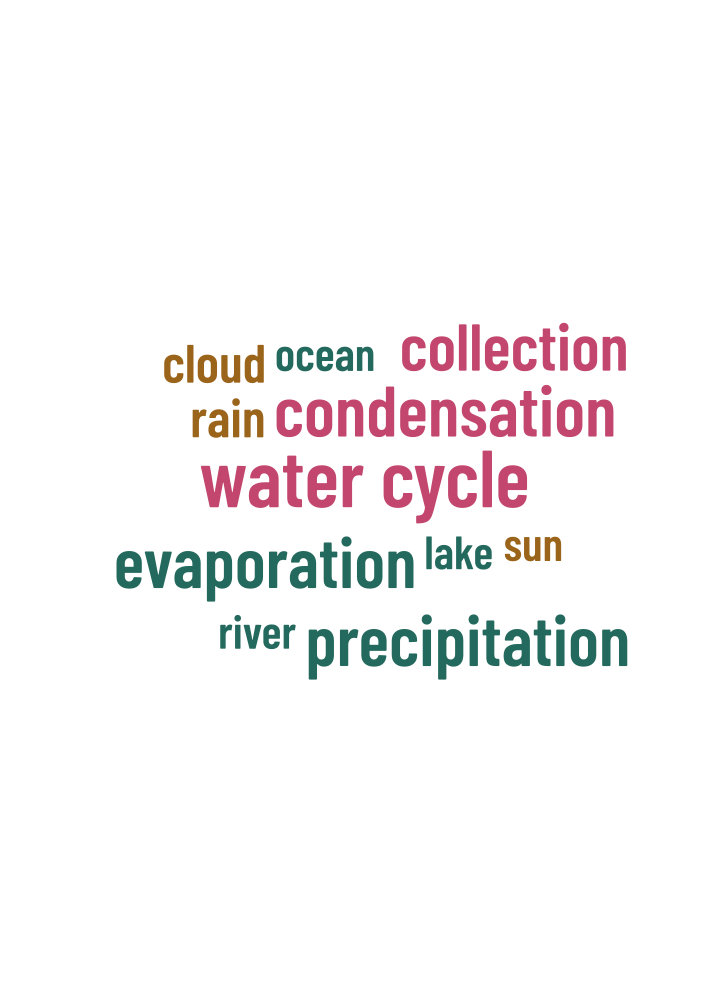
Look closely at evaporation, condensation and precipitation at the size you plan to print. If they are hard to read, try a broader shape or fewer words in the decorative display. Keep the full technical terms rather than shortening them to fit a gap; students can use the companion list for the complete vocabulary.
4. Leave room for definitions
Place the text list below or beside the cloud in your worksheet or display document. Add definitions, diagrams or examples where the lesson needs them. SVG artwork uses letter outlines to preserve its appearance, so it doesn't replace ordinary readable text that students can search, select or access with assistive software.
For a simple print, try dark words on white. If you're using a black-and-white printer, choose a single dark artwork color and check the exported file. The editor's light and dark themes only change the controls around the design. They don't change the colors you've chosen for the artwork.
5. Check one print before putting it up
- Compare the cloud and text list with your lesson vocabulary.
- Check the placement report for missing terms.
- Read the smallest words at the intended print size.
- Add any definitions or lesson notes students will need.
- Download a project JSON so you can update the display later.
Print one copy and view it from the distance students will use it. A term that looks clear on your screen may need more space on a wall display. Adjust the design for your room and learners before printing the rest. This example is a starting point for a display, rather than a tested lesson plan.